Thursday, March 5, 2020

How To Send Email If Button Is Clicked In Excel?

1. Insert a Command Button in your worksheet by clicking Developer > Insert > Command Button (ActiveX Control). See screenshot:


2. Right-click the inserted Command Button, then click View Code from the right-clicking menu as below screenshot show.


3. In the opening Microsoft Visual Basic for Applications window, please replace the original code in the Code window with the following VBA script.

VBA code: Send email if button is clicked in Excel

Private Sub CommandButton1_Click()
'Updated by Extendoffice 2017/9/14
    Dim xOutApp As Object
    Dim xOutMail As Object
    Dim xMailBody As String
    On Error Resume Next
    Set xOutApp = CreateObject("Outlook.Application")
    Set xOutMail = xOutApp.CreateItem(0)
    xMailBody = "Body content" & vbNewLine & vbNewLine & _
              "This is line 1" & vbNewLine & _
              "This is line 2"
                  On Error Resume Next
    With xOutMail
        .To = "Email Address"
        .CC = ""
        .BCC = ""
        .Subject = "Test email send by button clicking"
        .Body = xMailBody
        .Attachments.Add ("e:\report.doc")
        .Display   'or use .Send
    End With
    On Error GoTo 0
    Set xOutMail = Nothing
    Set xOutApp = Nothing
End Sub

Notes:

1). Please change the email body as you need in the xMailBody line in the code.

2). Replace the Email Address with the recipient email address in line .To = "Email Address".

3). Specify the Cc and Bcc recipients as you need in .CC = “” and .Bcc = “” sections.

4). Change the email subject in line .Subject = "Test email send by button clicking".

5) Change the attached file in line .Attachments = "e:\report.doc"

4. Press the Alt + Q keys simultaneously to close the Microsoft Visual Basic for Applications window.



5. Turn off the Design Mode by clicking Developer > Design Mode. See screenshot:


From now on, every time you click on the Command Button, an email will be created automatically with specified recipients, subject and body. Please send the email by clicking the Send button.

Note: The VBA code is only working when you use Outlook as your email program.

*********************************************************************************

Send data from Excel to the body of your outlook email with the table.

The code
Sub esendtable()

Dim outlook As Object
Dim newEmail As Object
Dim xInspect As Object
Dim pageEditor As Object

Set outlook = CreateObject("Outlook.Application")
Set newEmail = outlook.CreateItem(0)

With newEmail
    .To = Sheet1.Range("A2").Text
    .CC = ""
    .BCC = ""
    .Subject = "Data"
    .Body = "Please find the requested information" & vbCrLf & "Best Regards"
    .display
    
    Set xInspect = newEmail.GetInspector
    Set pageEditor = xInspect.WordEditor
    
    Sheet1.Range("B2:E5").Copy
    
    pageEditor.Application.Selection.Start = Len(.Body)
    pageEditor.Application.Selection.End = pageEditor.Application.Selection.Start
    pageEditor.Application.Selection.PasteAndFormat (wdFormatPlainText)
    .display
    .Send
    Set pageEditor = Nothing
    Set xInspect = Nothing
End With

Set newEmail = Nothing
Set outlook = Nothing


End Sub


****************************************************************


Option Explicit

Private Sub CommandButton1_Click()

Dim outlook As Object
Dim newEmail As Object

Set outlook = CreateObject("Outlook.Application")
Set newEmail = outlook.CreateItem(0)

With newEmail
    .To = Sheet1.Range("B1").Text
    .CC = Sheet1.Range("B2").Text
    .BCC = Sheet1.Range("B3").Text
    .Subject = Sheet1.Range("B4").Text
    '.Body = "Hello World." 
    .Display  
    
    Dim xInspect As Object
    Dim pageEditor As Object
    
    Set xInspect = newEmail.GetInspector
    Set pageEditor = xInspect.WordEditor
    
    Sheet1.Range("A6:D11").Copy
    
    pageEditor.Application.Selection.Start = Len(.Body)
    pageEditor.Application.Selection.End = pageEditor.Application.Selection.Start
    pageEditor.Application.Selection.Paste
    
    Set pageEditor = Nothing
    Set xInspect = Nothing
End With

Set newEmail = Nothing
Set outlook = Nothing


End Sub


Note:

'Delete the file you have send
Kill TempFilePath & TempFileName & FileExtStr

Kill "C:\temp\file1.txt"


*** https://www.extendoffice.com/documents/excel/4662-excel-send-email-if-button-clicked.html

Tuesday, March 3, 2020

Blinking Or Flashing Text Of Specified Cell With VBA Code

1. Press Alt + F11 keys simultaneously to open the Microsoft Visual Basic for Applications window.

2. In the Microsoft Visual Basic for Applications window, click Insert > Module. Then copy and paste the following code into the Code window.

VBA code: Blinking text of specified cell in Excel

Sub StartBlink()
    Dim xCell As Range
    Dim xTime As Variant
      On Error Resume Next
    Set xCell = Range("Sheet2!A1")
  On Error Resume Next
 
        If xCell.Font.Color = vbRed Then
            xCell.Font.Color = vbWhite
        Else
            xCell.Font.Color = vbRed
        End If
    xTime = Now + TimeSerial(0, 0, 1)
    Application.OnTime xTime, "'" & ThisWorkbook.Name & "'!StartBlink", , True
End Sub

Note: in this VBA code, Sheet2 and A1 indicate the text in cell A1 of Sheet2 will be blinked in current workbook.

3. Press the Alt + Q keys simultaneously to close the Microsoft Visual Basic for Applications window.

Now you need a button to start and stop the blinking.

4. Click Developer > Insert > Button (Form Control). See screenshot:


5. Draw a button in your worksheet, then an Assign Macro dialog box pops up, please click StartBlink in the Macro name box, and then click the OK button. See screenshot:


6. Right click the inserted button, and click Edit Text from the right-clicking menu. Then change the button text to the text you need such as Start / Stop Blinking.


From now on, when clicking on the button, the text of cell A1 starts blinking. And when clicking on the button again, the text of cell A1 stops blinking.


Friday, February 7, 2020

Excel MATCH Function

Summary 

MATCH is an Excel function used to locate the position of a lookup value in a row, column, or table. MATCH supports approximate and exact matching, and wildcards (* ?) for partial matches. Often, the INDEX function is combined with MATCH to retrieve the value at the position returned by MATCH.

Purpose 

Get the position of an item in an array

Return value 

A number representing a position in lookup_array.

Syntax 

=MATCH (lookup_value, lookup_array, [match_type])

Arguments 

lookup_value - The value to match in lookup_array.
lookup_array - A range of cells or an array reference.
match_type - [optional] 1 = exact or next smallest (default), 0 = exact match, -1 = exact or next largest.

Usage notes 

Use the MATCH function to get the position of a value in an array. Match offers three different matching modes, which makes it more flexible than other lookup functions. When used with INDEX, MATCH can retrieve the value at the matched position.

Match type information

Match type is optional. If not provided, match type defaults to 1 (exact or next smallest). When match type is 1 or -1, it is sometimes referred to as "approximate match". However, keep in mind that MATCH will find an exact match with all match types, as noted in the table below:

Match type      Behavior
1                 Exact match or next smallest value. The lookup_array must be sorted in ascending order.
0                      Exact match only. The lookup_array does not need to be sorted.
-1                Exact match or next largest value. The lookup_array must be sorted in descending order.

Note: Be sure to set match type to zero (0) if you require an exact match. The default setting of 1 can cause MATCH to return results that look "normal" but are in fact incorrect. I recommend always providing a value for match_type, as a reminder of what behavior is expected.

Basic exact match

When match type is set to zero, MATCH performs an exact match. In the example below, the formula in E3 is:

=MATCH(E1,B2:B7,0)
Basic exact match with MATCH function


Basic approximate match

When match type is set to 1, MATCH will perform an approximate match on values sorted A-Z, finding the largest value less than or equal to the lookup value. In the example shown below, the formula in E3 is:

=MATCH(E1,B2:B7,1)
Basic approximate match with MATCH function


Basic wildcard match

When match type is set to zero (0), MATCH can perform a match using wildcards. In the example shown below, the formula in E1 is:

=MATCH(E1,B2:B7,0)

This is equivalent to:

=MATCH("pq*",B3:B11,0)


Excel IF Function

Summary 

The IF function can perform a logical test and return one value for a TRUE result, and another for a FALSE result. For example, to "pass" scores above 70: =IF(A1>70,"Pass","Fail"). More than one condition can be tested by nesting IF functions. The IF function can be combined with logical functions like AND and OR.

Purpose 

Test for a specific condition

Return value 

The values you supply for TRUE or FALSE

Syntax 

=IF (logical_test, [value_if_true], [value_if_false])

Arguments 

logical_test - A value or logical expression that can be evaluated as TRUE or FALSE.
value_if_true - [optional] The value to return when logical_test evaluates to TRUE.
value_if_false - [optional] The value to return when logical_test evaluates to FALSE.

Usage notes 

Use the IF function to test for or evaluate certain conditions, and then react differently depending on whether the test was TRUE or FALSE.

In the example shown, we want to assign either "Pass" or "Fail" based on a test score. A passing score is 70 or higher. The formula in C2, copied down, is:

=IF(B2>=70,"Pass","Fail")

Translation: If the value in B2 is greater than or equal to 70, return "Pass". Otherwise, return "Fail".

The logical flow this formula can be reversed. The formula below returns the same result:

=IF(B2<70,"Fail","Pass")

Translation: If the value in B2 is less than 70, return "Fail". Otherwise, return "Pass".

Both formulas above, when copied down, will return correct results.


Logical operators

When you are constructing a test with IF, you can use any of the following logical operators:

Comparison operator Meaning Example
= equal to A1=D1
> greater than A1>D1
>= greater than or equal to A1>=D1
< less than A1<d1< td=""></d1<>
<= less than or equal to A1<=D1
<> not equal to A1<>D1

IF with AND, OR

The IF function can be combined with the AND function and the OR function. For example, to return "OK" when A1 is between 7 and 10, you can use use a formula like this:

=IF(AND(A1>7,A1<10),"OK","")

Translation: if A1 is greater than 7 and less than 10, return "OK". Otherwise, return nothing ("").

To return B1+10 when A1 is "red" or "blue" you can use the OR function like this:

=IF(OR(A1="red",A1="blue"),B1+10,B1)

Translation: if A1 is red or blue, return B1+10, otherwise return B1.

Thursday, February 6, 2020

Calculate Due Dates for Payments or Years Toward Retirement with EDATE Function

Summary 

The Excel EDATE function returns a date on the same day of the month, n months in the past or future. You can use EDATE to calculate expiration dates, maturity dates, and other due dates. Use a positive value for months to get a date in the future, and a negative value for dates in the past. 

Purpose 

Shift date n months in future or past

Return value 

New date as Excel serial number

Syntax 

=EDATE (start_date, months)

Arguments 

start_date - Start date as a valid Excel date.
months - Number of months before or after start_date.

Example

EDATE is a date and time function in excel which adds a given number of months into a date and gives us a date in a numerical format of date, the arguments this function takes is date and integers, date as the start date to begin with and number of months are integers to add it to the given start date, the output returned by this function is also a date value, the method to use this function is =Edate( Start Date, Months).


Thursday, January 30, 2020

Difference between Salary & Salary Payable

Salary payable is an accrued liability and therefore credited in the books of accounts. The journal entry for salary payable is shown below. on one hand salary is debited being the expense for the company and on other hand a liability is created with the name of salary payable.

Date Particulars              Dr.          Cr.
xx.xx.xxxx Salary                     Rs xxx
xx.xx.xxxx Salary payable                        Rs xxx

Example:-
Salary Payable Journal Entry 

On 31 December 2014 salary for the month of December amounting Rs 20,000 to be paid in January, 2014 shall be recorded as under. Salary account shall be debited, while salary payable account will be credited.

Date Particulars              Dr.                  Cr.
2014 Salary                      Rs 20,000
2014 Salary payable                               Rs 20,000

Salary Payment Journal Entry

In next month, when the salary shall be paid, then following entry would be recorded in the books of accounts. The liability would be removed upon payment of liability by debiting the salary payable and crediting the cash.

Date Particulars          Dr.                   Cr.
2014         Salary payable      Rs 20,000
2014         Cash                                          Rs 20,000

The above scheme of entries can be used to record all accrued expenses. In first place the expense is debit and related liability is created and then in next stage the liability is removed , when liability is paid off.

Difference between Salary & Salary Payable


Friday, May 10, 2019

How to Create a Data Entry Form in Excel [One-Click, No VBA]

In a short while, you will discover that how helpful this tool is.

But, this is hard to believe that there is no listing of this data entry form in the ribbon. So, you have to make it appear before we use it.

And before you activate this form, you need a table to enter data or at least headers of the data.


To activate it, click any of the cells in the table or just select one of the heading cells and use one of the below two methods.

1. Use the keyboard shortcut key: Alt + D + O + O.

2. Add an icon to quick access toolbar.

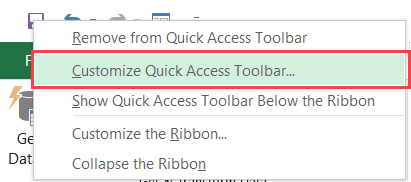
a. Right-click on any of the existing icons in the Quick Access Toolbar.
b. Click on ‘Customize Quick Access Toolbar’.

Customize the Quick Access Toolbar option

c. In the ‘Excel Options’ dialog box that opens, select the ‘All Commands’ option from the drop-down.
d. Scroll down the list of commands and select ‘Form’.
e. Click on the ‘Add’ button.
f. Click OK.


The above steps would add the Form icon to the Quick Access Toolbar  (as shown below).

After using one of the above options, it will create a data entry form for you just like below.


And if you notice, all the headings of your data table automatically captured in the form.

Wednesday, April 24, 2019

EPF Interest Rate 2018-19: How to Calculate Interest on EPF

EPF is expanded as Employees provident fund.In 1952 4th March government has passed The Employees Provident Fund Act with the object of ensure the employee better future on his retirement and of his dependents on his death.The organisation created for governing such rules is called EPFO,The Employees Provident Fund Organisation.

Employees’ Provident Fund (EPF) is a retirement benefits scheme where the employee contributes 12% of his basic salary and dearness allowance every month. The employer also contributes an equivalent amount (8.33% towards EPS and 3.67% towards EPF) in the employee’s account. The employee can withdraw the accumulated corpus at the time of retirement and also during the service period for specific purposes.

EPF Interest Rate

The Central Board of Trustees of the Employees' Provident Fund Organisation (EPFO) has recommended increasing the interest rate on Employees' Provident Fund for 2018-19 to 8.65% as against 8.55% in the preceding year. The move, once approved by the finance ministry will benefit six crore EPFO subscribers .

Labour minister Santosh Gangwar said the body has decided "to provide 8.65 per cent interest on PF deposits for 2018-19".

Link - Economics Time
Link - Times of India

EPF interest calculation

In the EPF scheme, you and your employer contribute every month. Your full 12% contribution goes to the EPF scheme. While the employer’s 8.33% contribution (maximum ₹1250) goes to the pension scheme. The remaining amount goes to the EPF scheme. The EPFO does not give any interest on the pension corpus. The interest is calculated on EPF corpus.

Since EPF contribution is given monthly, the interest is also calculated for every month’s contribution. Hence, the monthly interest rate is used to get the interest of each month. You can know the monthly interest rate by dividing annual interest by 12.

Every month, the interest is given on the opening balance of the EPF account. Thus, any contribution after the last day of the previous month would not become part of the opening balance. For example, if you contribute X  amount on 2nd April, this X would not get any interest for the April month. The interest on x would be calculated in the next month.


The compounding of EPF interest happens at the end of every financial year. On 31st March of every year, the interest is included in the EPF balance. After this addition, you get the interest on interest.


Let us now understand how the interest is calculated on EPF deposits. 

Let us consider the same EPF statement as the one given above. My friend had joined in his first job in a Private Limited company in April 2018. His company contributes 3.67% of his Basic salary as “EPF deposit” (Rs 239 pm) every month and 8.33% towards the EPS scheme (Rs 541 pm). (The 12% is subject to minimum of Rs 6,500 in 2018-19). His contribution was 12% of Rs 6,500 which was Rs 780 pm. ***Maximum Limit of PF Rs 15,000/- will deduct PF on that particular amount and some companies have their own policies.

Let me put all these figures in MS excel and calculate the total interest earned on EPF deposits from April 2018 to end of March 2019.


Let me now explain about the calculation part. In the month of April 2018 the interest amount was zero because the available EPF balance was zero in the month of March 2018.

In May 2018, Rs 7 was the interest earned for April's monthly contribution. We need to consider April month end balance (Rs 1019) and EPF applicable interest rate (it is 8.65% in 2018-2019) divided by 12 months (we are calculating monthly interest amount). We need to repeat these calculations till March 2018. The total accumulated interest was Rs 476 and was credited on 31/Mar/2018 (as shown in EPF statement).

The total interest amount of Rs 476 was added to April month’s balance, along with the monthly deposits. Even after the recent amendments to minimum contribution amount, the interest calculation procedure has not changed.


So, suggest you to try these calculations based on your monthly Provident Fund deposits and understand how is interest calculated on your Provident Fund Account.


EPF Historical Interest Rates

Year
EPF Interest Rates
1952 – 1955
3.00%
1955 – 1957
3.50%
1957 – 1963
4.00%
1963 – 1964
4.25%
1965 – 1966
4.50%
1966 – 1967
4.75%
1967 – 1968
5.00%
1968 – 1969
5.25%
1969 – 1970
5.50%
1970 – 1971
5.70%
1971 – 1972
5.80%
1972 – 1974
6.00%
1974 – 1975
6.50%
1975 – 1976
7.00%
1976 – 1977
7.50%
1977 – 1978
8.00%
1978 – 1979
8.25% + 0.5% bonus (for members who did not withdraw any amount from their PF during 1976-1977 & 1977-1978)
1979 – 1981
8.25%
1981 – 1982
8.50%
1982 – 1983
8.75%
1983 – 1984
9.15%
1984 – 1985
9.90%
1985 – 1986
10.15%
1986 – 1987
11.00%
1987 – 1988
11.50%
1988 – 1989
11.80%
1989 – 2000
12.00%
2000 – 2001
12% (April-June, 2001) and 11% (July, 2001 onwards) on monthly running balance
2001 – 2004
9.50%
2004 – 2005
9.50% (9% Interest + 0.5% Golden Jubilee bonus interest)
2005 – 2010
8.50%
2010 – 2011
9.50%
2011 – 2012
8.25%
2012 – 2013
8.50%
2013 – 2015
8.75%
2015 – 2016
8.80%
2016 – 2017
8.65%
2017 – 2018
8.55%


How to Calculate Interest on EPF

EPF interest is calculated every month but is deposited in the account at the end of the financial year. The following example explains the interest calculation on EPF of the employee:

Basic Salary + Dearness Allowance = ₹ 15,000
Employee’s contribution towards EPF = 12% of ₹ 15,000 = ₹ 1,800
Employer’s contribution towards EPS = 8.33% of ₹ 15,000 = ₹ 1,250
Employer’s contribution towards EPF = Employee’s contribution – Employer’s contribution towards EPS = ₹ 550
Total EPF contribution every month = ₹ 1,800 + ₹ 550 = ₹ 2,350
The interest rate for 2017-2018 is 8.55%.
When calculating interest, the interest applicable per month is = 8.55%/12 = 0.7125%

Assuming the employee joined a service on 1st April 2017, contributions start for the financial year 2017 – 2018 from April

Total EPF Contribution for April = ₹ 2,350
Interest on the EPF contribution for April = Nil (No interest for the first month)
EPF account balance at the end of April = ₹ 2,350
Total EPF Contribution for May = ₹ 2,350
Total EPF contribution for May = ₹ 4,700
Interest on the EPF contribution for May = ₹ 4,700 * 0.7125% = ₹ 33.49
The interest will be calculated every month but will be deposited only at the end of the financial year (on 31st March 2018 in this case).

Employer and Employee Contribution

Employer and Employee Contribution

A provident fund is created with a purpose of providing financial security and stability to employees. A person starts his contribution in the PF fund once he joins a company as an employee. The contributions are made on a regular basis. The primary purpose of PF fund is to help employees save a fraction of their salary every month so that he can use the same in an event that the employee is temporarily or no longer fit to work or at retirement.

EPF Contribution consists of two parts depending on the entity that makes the contribution – Employee’s contribution and Employer’s contribution.

Employers and employees both contribute @12% of wages in contribution accounts. Further, the employers also contribute towards administration of the benefits under the EPF & MP Act.

The rate of contribution for certain category of establishments is 10%. These are:-

  • Any establishment in which less than 20 employees are employed
  • Any sick industrial company and which has been declared as such by the Board for Industrial and Financial Reconstruction
  • Any establishment which has at the end of any financial year has accumulated losses equal to or exceeding its entire net worth, and
  • Any establishment in following industries:- Jute, Beedi, Brick, Coir and Guar gum Factories.

The employer makes a contribution of 8.33% towards the EPS (Employees’ Pension Scheme) account of the employee. Another 3.67% is added to the EPF account of the employee. The employer also makes 0.50% of contribution towards the EDLI (Employees’ Deposit Linked Insurance) account of the employee.

The employer has to pay an additional charge for administrative accounts at a rate of 0.50% with effect from 1st June 2018. The minimum administrative charge is ₹ 500 and if there is no contribution for a specific month, the employer has to pay a fee of ₹ 75 for that month.


EPF Contribution Rate For Employee and Employer in 2018


Minimum 12% Contribution by Employee and Employer (In 2018)

You have to deposit a minimum amount to EPF account. It is 12% of your salary. You have to deposit this amount every month. Your employer deducts this amount before paying salary to you.

According to the EPF rule, your employer has to also match your EPF contribution. Thus, it has to also deposit 12% of your salary. This amount goes to your EPF and EPS account.

8.33% Goes to Pension Scheme

The employee pension scheme (EPS) runs along with the EPF scheme. A part of the EPF contribution goes to this scheme. Out of 12% employer’s contribution, 8.33% is routed to EPS. The remaining amount goes to EPF account.

There is an upper limit of the pension contribution. It can’t be more than ₹1250/month. This amount of ₹1250 is 8.33% of the 15,000. You may be aware that the EPF scheme is mandatory for the employee who earns ₹15,000 or less per month.

Summing Up


"The 12% of employee’s basic salary goes to the EPF scheme. The employer also contributes the same amount. From employer’s contribution, 8.63% goes towards the Employee Pension Scheme. The rest 3.33% goes to the EPF scheme. The employer’s contribution to the EPS is limited to ₹1250. The remaining amount is added to the EPF scheme." 


Contribution for EDLI

When you become a member of EPF scheme, you also get the benefit of a life insurance cover. The EPFO provides the death cover to all of its active members. This scheme of life insurance cover is called as the Employee Deposit Linked Insurance Scheme.

This scheme also runs on contribution. The employers have to contribute to EDLI scheme for every employee. The contribution rate for EDLI is .01% of the employee’s salary. The employer has to deposit minimum ₹200 for EDLI scheme, in case its total EDLI contribution does not cross ₹200.

Because of this scheme, the family members of a deceased employee get ₹6 lakhs.


роиீроЩ்роХро│் EPF родிроЯ்роЯрод்родிрой் роЙро▒ுрок்рокிройро░ாроХுроо்рокோродு, ​​роЖропுро│் роХாрок்рокீроЯ்роЯு роЕроЯ்роЯைропிрой் рокропройுроо் роХிроЯைроХ்роХுроо். EPFO роЕродрой் роЕройைрод்родு роЪெропро▓родிроХாро░роЩ்роХро│ுроХ்роХுроо் рооро░рог роЕро▒ிро╡ிрок்рокை ро╡ро┤роЩ்роХிропுро│்ро│родு. ро╡ாро┤்роиாро│் роХாрок்рокீроЯ்роЯிрой் роЗрои்родрод் родிроЯ்роЯроо், рокрогிропாро│ро░் ро╡ைрок்рокுрод்родொроХை роЗрогைроХ்роХрок்рокроЯ்роЯ роХாрок்рокீроЯு родிроЯ்роЯрооாроХ роЕро┤ைроХ்роХрок்рокроЯுроХிро▒родு.

роЗрои்род родிроЯ்роЯроо் рокроЩ்роХро│ிрок்рокுроЯрой் роЗропроЩ்роХுроХிро▒родு. роТро╡்ро╡ொро░ு рокрогிропாро│ро░ுроХ்роХுроо் EDLI родிроЯ்роЯрод்родிро▓் рооுродро▓ாро│ிроХро│் рокроЩ்роХро│ிроХ்роХ ро╡ேрог்роЯுроо். EDLI роХ்роХு рокроЩ்роХро│ிрок்рокு ро╡ீродроо் роКро┤ிропро░் роЪроо்рокро│род்родிрой் .01% роЖроХுроо். EDLI родிроЯ்роЯрод்родிрой் рооொрод்род EDLI рокроЩ்роХро│ிрок்рокு ₹ 200 роР роХроЯроХ்роХாродрокроЯ்роЪрод்родிро▓், EDLI родிроЯ்роЯрод்родிро▒்роХாроХ роХுро▒ைрои்родрокроЯ்роЪроо் ₹ 200 роР роЪெро▓ுрод்род ро╡ேрог்роЯுроо்.


роЗрои்род родிроЯ்роЯрод்родிрой் роХாро░рогрооாроХ, роЗро▒рои்род роКро┤ிропро░ிрой் роХுроЯுроо்рок роЙро▒ுрок்рокிройро░்роХро│் ₹ 6 ро▓роЯ்роЪроо் рокெро▒ுроХிрой்ро▒ройро░்.

Administrative Expense By Employer

Besides the 12% contribution, an employer has to also contribute for administrative expenses of EPFO. The rate for the administrative expense is 0.85% of the employee salary. Before 2015, it was 1.10%.

Earlier this rate was much higher. But now, because of the online operations, the EPFO could reduce its expense. Therefore, the employers have got the respite.

However, an employer has to deposit minimum ₹500/month as the administrative expense. If the establishment has no contributory member in the month, the minimum administrative
charge will be ₹75.


In case of Establishment is exempted under PF Scheme, Inspection charges @0.18%, minimum ₹5/- is payable in place of Admin charges.

Important Points Related to EPF Contributions

  • The contribution made by the employee goes totally towards the provident fund of the employee.
  • The contribution made by the employer is divided into different parts.
  • Total contribution made by the employer is distributed as 8.33% towards Employees’ Pension Scheme and 3.67% towards Employees’ Provident Fund.
  • Apart from the above-made contributions, an additional 0.5% towards EDLI has to be paid by the employer.
  • Certain administration costs towards EDLI and EPF standing at the rate of 1.1% and 0.01% respectively also have to be incurred by the employer.
  • This means that the employer has to contribute a total of 13.61% of the salary towards this scheme.

Important Points to Consider

1) (Employee Provident Fund) EPF

The maximum wage ceiling for the calculation of EPF contributions is ₹ 15,000

The employee can make contributions at a higher rate but the employer is not bound to pay at the higher rate

The employee and the employer has to submit a joint request for making higher contributions in the EPF account

The employer, however, will have to pay higher administrative charges (at the rate including 0.50% of the employee’s wage above ₹ 15,000)

There is no wage ceiling (₹ 15,000) for international workers

2) (Employees’ Pension Scheme) EPS

The employer is not required to make the contribution when the employee reaches 58 years of age and is still in service

The employer need not pay EPS contribution when the pensioner is drawing a reduced pension and re-joins as an employee

The employee, who joins the service at an age of 50 or above and is not availing pension, does not have an option of not getting the pension contribution. The employee, or the employer, cannot say that the contribution should not be furnished as he will not be able to complete 10 years of service to avail pension benefits

3) (Employees’ Deposit Linked Scheme) EDLI

The contribution to be made should be at a rate of  the maximum wage ceiling of ₹ 15,000 even if the employee’s share is more than ₹ 15,000

Each contribution is rounded off to the nearest rupee

EDLI contribution has to be made even after the employee has completed the age of 58 years and should continue until the member is in service!

Accounts Entry:-

I.
Dr Salary 12,000 

Cr Salary Payable 9,600.00 

Cr PF Employee Contbn. 2,400.00 
(being Salary Payable for the month of May 2012). 

Dr Salary Payable 9,600.00 
Cr Bank 9,600.00 
(being Salary Paid for the month of May 2012) 

Dr PF Employee Contbn. 2,400.00 

Dr PF Employer Contbn. 2,600.00 
Cr Bank 5,000.00 
(Being the PF Amount Paid for the month of May 2012)

II. Illustration 

Calculation of EPF 

Employee is required to contribute 12% of “PF salary” while the employer is required to contribute 13% of “PF salary” towards Employees’ Provident Fund where “PF salary” consists of Basic + DA (including the cash value of any food concession) and retaining allowance Employer’s contribution of 13% is distributed in four different accounts i.e. EPF, Pension Scheme, Employee Deposit Linked Insurance and EPF Administration charges in following manner: 

Suppose an employee earns salary of Rs 16000 comprising of: 

Basic Salary – Rs 10000 
Dearness Allowance – Rs 2000 
HRA – Rs 4000 

Since his total of Basic salary and DA is less than Rs 15000, he is covered within the ceiling limit. Calculate EPF contributions and write journal entries. 

Solution 

Employer’s contribution:- 
EPF @ 3.67% - Rs 440 
EPS @ 8.33% - Rs 1000 
EDLI @ 0.50% - Rs 60 
EPF Admin charges @ 0.50% - Rs 60 
Total Rs 1560 
Employee’s contribution to EPF @ 12% = Rs 1440 
So total contribution made is Rs 1440 + Rs 1560 = Rs 3000


Dr Salary 16000 
Cr Bank (Salary payable) 14560
Cr Employee’s contribution to EPF 1440 

Dr Employee’s contribution to EPF 1440
Dr Employer’s contribution to EPF 440 
Dr Employer’s contribution to EPS 1000 
Dr EPF Administration charges 60 
Dr Employer’s contribution to EDLI 60 
Cr Bank (PF Payable) 3000 


Journal entry for provident Fund

In this article we would discuss the journal entry for provident fund contribution. There are two types of contribution in provident fund i.e. employer contribution and employee contribution.


Employer Contribution Journal Entry

Employer contribution is expense for the business. Thus expense is recorded, while provident fund is liability towards the employee, thus a liability is created for employees. For example the journal entry for the provident contribution shall be recorded as under;

Date
Particulars
Dr
Cr

Provident fund contribution A/c
100,000


  Provident fund payable

100,000

Employee contribution Journal Entry

The provident fund contribution is normally deducted from the salary. Thus the following entry is recorded in the book to create a liability of provident fund. The salary is paid net off provident fund liability.

Date
Particulars
Dr
Cr

Salary A/c
100,000


  Provident fund payable

10,000

  Cash

90,000

Fund transfer Journal Entry

We can see that there are two liability created (employer contribution and employee contribution). The total amount is transferred from operation account to provident fund account. The provident fund account cannot be used in business.

Date
Particulars
Dr
Cr

Provident fund Bank A/c
110,000


  Operational Bank

110,000


Interest on provident Fund Account

Interest earned on provident fund is also credited to employees by the following entry.

Date
Particulars
Dr
Cr

Provident fund Bank A/c
110,000


  Provident Fund Payable

110,000